Reduce your administrative workload with Payment Links.
What are Payment Links?
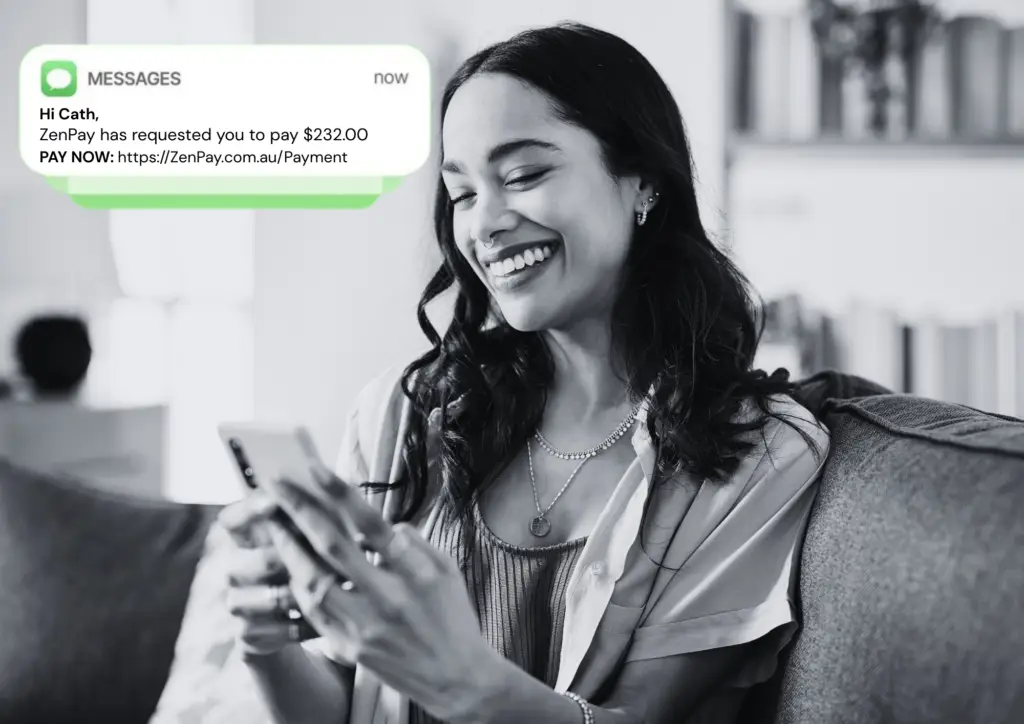
ZenPay Payment Link option provides you with the ability to send a payment request to your customers via email and/or SMS with details already prepopulated. When the customer receives the email and/or SMS, it will include a link to the agent’s unique customer payment page, with customers name, email, and amounts already populated. All you need to do, is either enter theircard details, use Apple Pay or Google Pay, and once the payment is processed, you will receive a payment notification. Payment will also be visible in the merchant portal via Payment History.
Payment Links with ZenPay
ZenPay’s Payment Link helps improve your payment collections by making it easier for customers to pay, faster for you to get paid, and simpler to manage end-to-end. With secure payment links sent via email or SMS, customers receive a personalised payment page with details pre-filled, reducing friction and missed payments.
Payment Links Benefits
Works with your existing invoicing and accounting tools. Easy one-click access from the invoice for the customer.
Deliver a clean, secure checkout that reflects your business and builds customer trust.
Instantly see when an invoice has been paid with real-time notifications and reporting.
Spend less time following up, reconciling payments, or matching transfers to invoices.
Customer can pay you securely online 24/7.
No cost to you. Unless, you choose to absorb the card processing fees.
Merchant Payment link
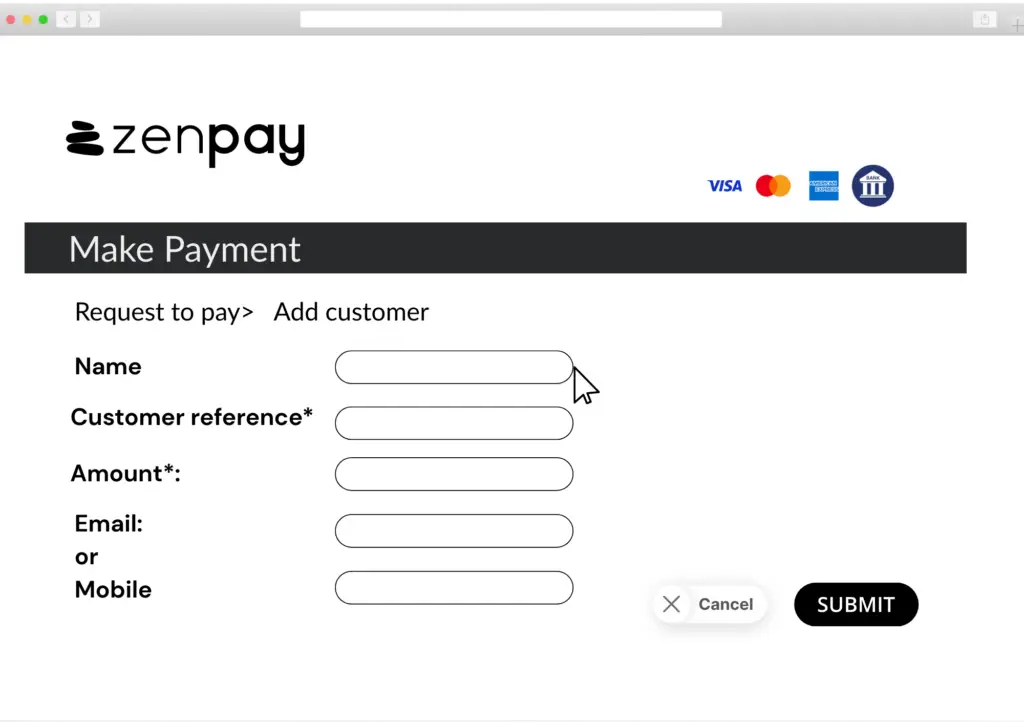
‘Request To Pay’ in the Merchant Portal:
Merchant Triggers the ‘Request To Pay’ in the Merchant Portal:
Log into your merchant portal
Click on ‘Request to Pay
Click on ‘Add customer’
Adding multiple request
With ‘Request to Pay’ you can send multiple requests at once. This is great for multiple end of month payment reminders or for group bookings where you can add all customers.
Download the ‘Request to Pay’ Excel file and add customer details.
Once Excel file is completed, click ‘Submit file’
Load file from where you have saved it
Instant Notifications
The customer clicks the payment link and completes payment using Visa, Mastercard, AMEX, Apple Pay, Google Pay, or AMEX Pay with Points, with the payment instantly confirmed and recorded in the ZenPay merchant portal.
Merchants receive instant notifications the moment a payment is completed, giving full visibility and enabling faster order processing and reconciliation.
How it works
Personalise your page
We build you a branded payment page.
Invoice your customer
Easily add your ZenPay 'Payment Link' to your invoice. You can do this from Xero, MYOB and QuickBooks (plus others).
Send to your customer
Email the invoice or share it through your preferred communication channel. Your customer clicks the link and completes payment securely using their preferred payment method .
Trusted Payments, Built Into Your Invoice.
Need help? Our Australian-based support team is here to guide you through setup and best practices.